Join ticket on the partner portal (dashboard)
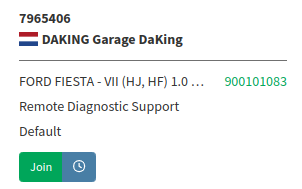 Go to the partner portal partner.jifeline.com and go to your ticket dashboard.
Make sure that your J-ReX connector is on-line, linked to your account and that you created a ticket. Once logged in to the partner portal, you will be able to handle your newly created ticket and prepare it for your openOBD session.
The main requirements are that your ticket:
- is
In progresson your own dashboard - has a connection associated with it (which is achieved by adding a local connector)
The following steps will guide you through te process of meeting those requirements.
Log into your Jifeline Partner Dashboard
- Go to the https://partner.jifeline.com and login with your credentials
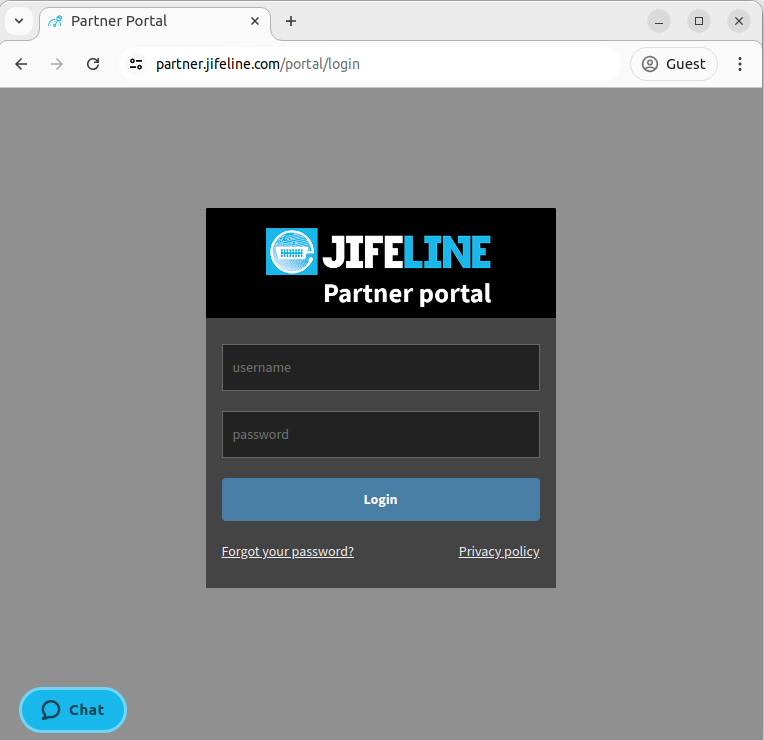
partner.jifeline.com
Join your pending ticket
- Once you have created a ticket, this ticket needs to be "joined" by an operator that runs the remote diagnostic support desk. When you are developing, you probably want to pick up this ticket yourself.
partner.jifeline.com
Select a local connector
- Select an available local in your connection. At the top of your ticket screen you will see a dotted line towards the local with the text 'Select local'.
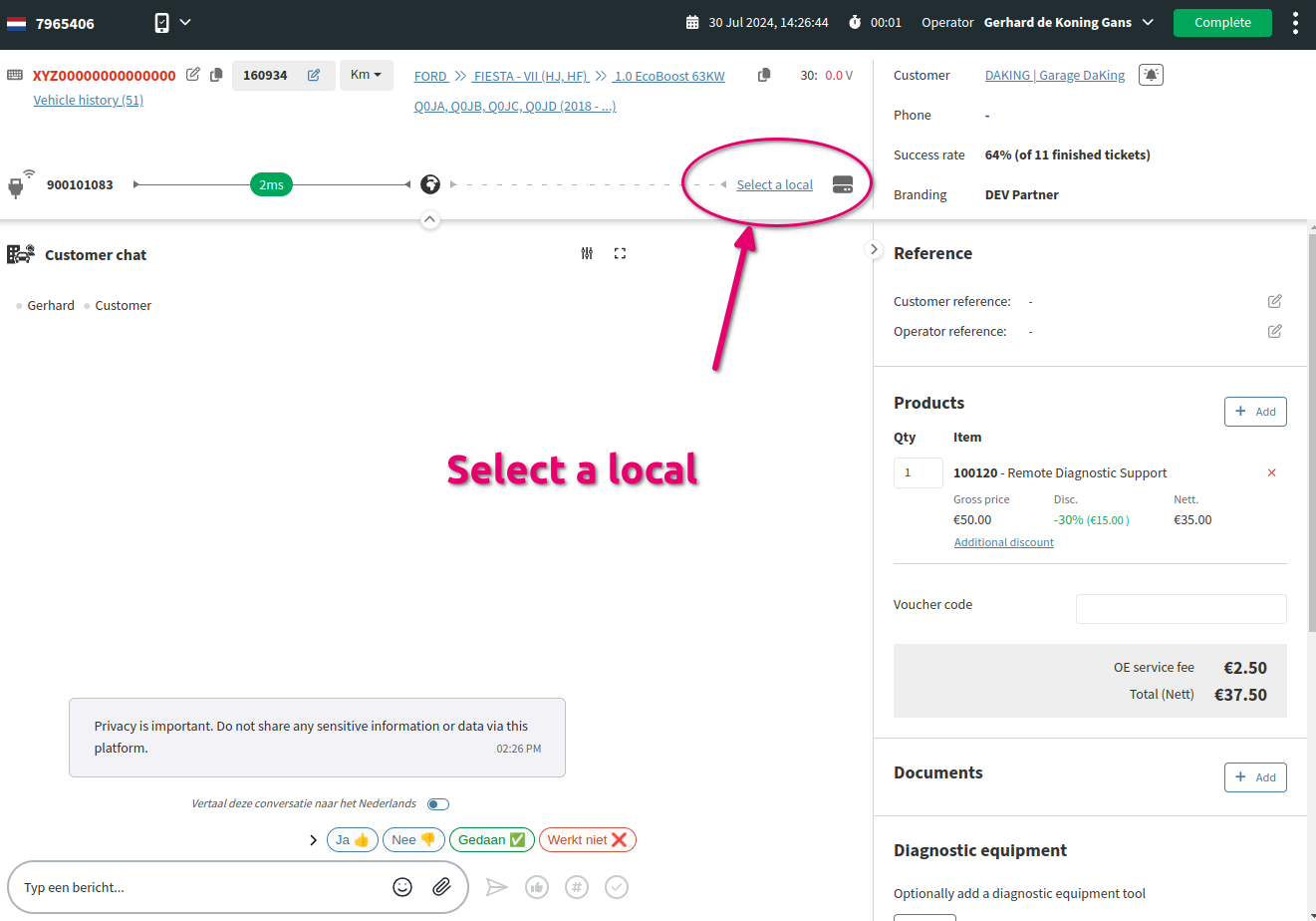
partner.jifeline.com
Temporary!
For the time being the process will be like this. It is a known limitation to our system that first a local needs to be selected before an openOBD session can be started.
Retrieve your ticket id!
- Ticket has a connection related to it and is
In progress, so ready for use with openOBD. - You will find the ticket id in the top left corner. In this example the ticket id is
7965406. - This ticket id can be used to start an openOBD session.
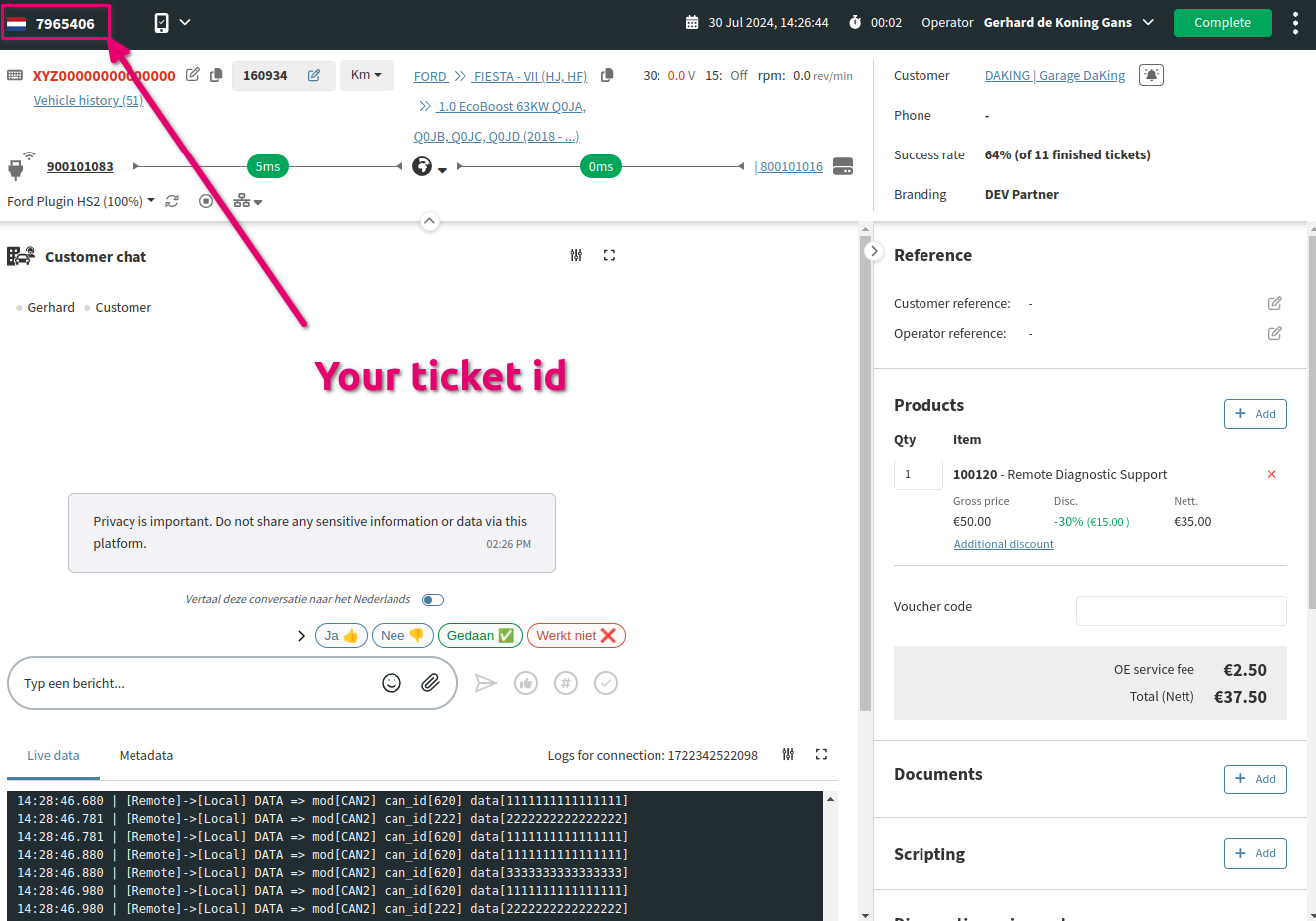
partner.jifeline.com