API credentials
The Partner API is a REST API with different endpoints which return JSON data regarding all sorts of resources that are related to the Jifeline dashboard. For more in-depth information, consult our background information on this matter.
What do you need
There are basically two scenarios. Either you, or somebody else, has already generated the API credentials for openOBD. Then, we advise you to use these credentials, as there is currently a low limit of maximal 5 API credentials that can be generated. If there are no API credentials available yet, you need to generate those credentials. The following procedure will guide you through this proces.
In our examples on this website we mainly make use of our Python client implementation of openOBD. The Python package that we publish retrieves it credentials from environment variables.
Therefore, it is convenient to define the required environment variables in one file. We will name this file openobd_credentials.env, but you can pick any name of your preference. It is important
to keep this file on a safe location.
Environment variables
The template for openobd_credentials.env looks like this.
OPENOBD_PARTNER_CLIENT_ID
Client ID is unique identifier for the credential set
OPENOBD_PARTNER_CLIENT_SECRET
Client secret contains the value that is used for authentication
OPENOBD_PARTNER_API_KEY
The API key is a unique value that directly relates to the partner (and thus is the same for all generated credentials of one partner)
OPENOBD_CLUSTER_ID
The cluster id where the openOBD sessions should run (001 = production europe, 002 = production usa)
OPENOBD_GRPC_HOST
The gRPC host contains the address where the openOBD client should connect to. This will always be grpc.openobd.com
You need to fill out the <Client ID>, <Client Secret> and <API Key> in the file shown above with the right values.
Generate API credentials
We will explain in the following steps how the <Client ID>, <Client Secret> and <API Key> can be retrieved.
Log into your Jifeline Partner Dashboard
- Go to the https://partner.jifeline.com and login with your credentials
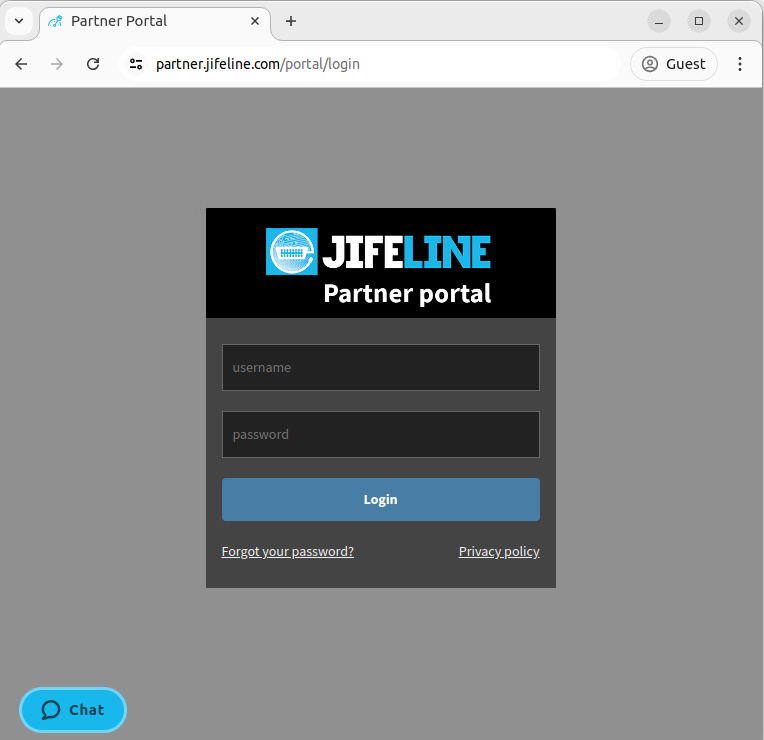
partner.jifeline.com
Go to your API credentials page
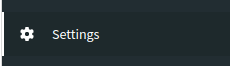
- Go to the
Settingspage
- Click on the API tab
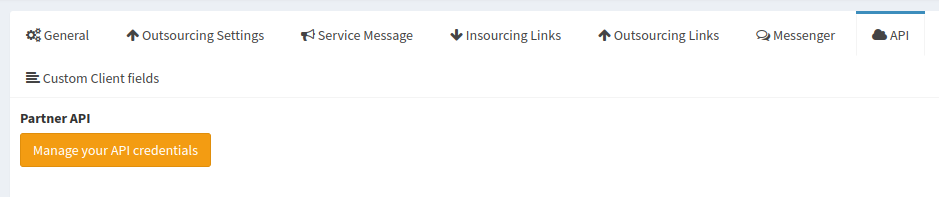
- Click on 'Manage your API credentials'
OPENOBD_PARTNER_API_KEY
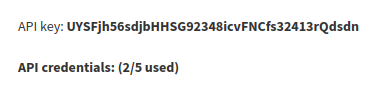
On the top of the API credentials page you will find the API key, you need this API key as it is an identifier for you as a RSS.
You will need to add this to your openobd_credentials.env as environment variable with the name OPENOBD_PARTNER_API_KEY.
For the example above, the corresponding line in your environment variables file would become:
OPENOBD_PARTNER_API_KEY=UYSFjh56sdjbHHSG92348icvFNCfs32413rQdsdn
Add new API credentials

- Click on 'Add new API credentials'
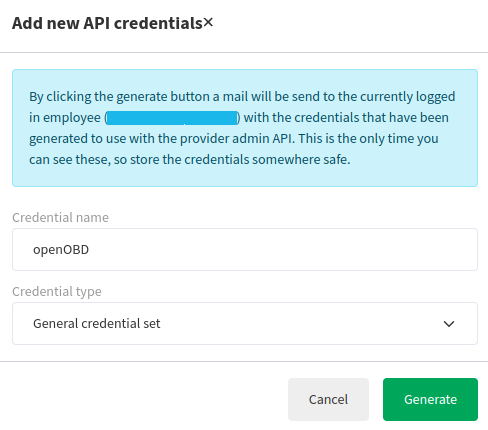
- Choose a proper name for your credentials, like 'openOBD'
- Select 'General credential set' as your credential type
- Click 'Generate' and the credentials will be mailed to the e-mail address that is registered with your account
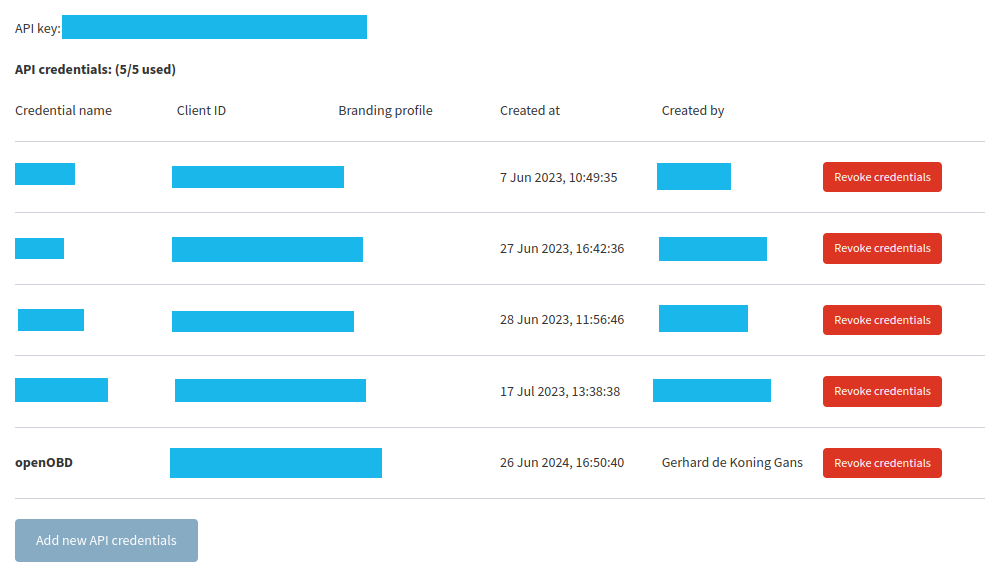
- Your newly generated credentials will appear in the list of API credentials
OPENOBD_PARTNER_CLIENT_ID
OPENOBD_PARTNER_CLIENT_SECRET
When you have added the new API credentials, you will receive an e-mail containing the Client ID and the Client Secret. You can use these values and fill them out in your environment variables file.
Make sure that you save this file in a secure location. Protect these credentials properly.